



What You Need Before Connecting
Before you start, make sure you have:
- A running Hytale server
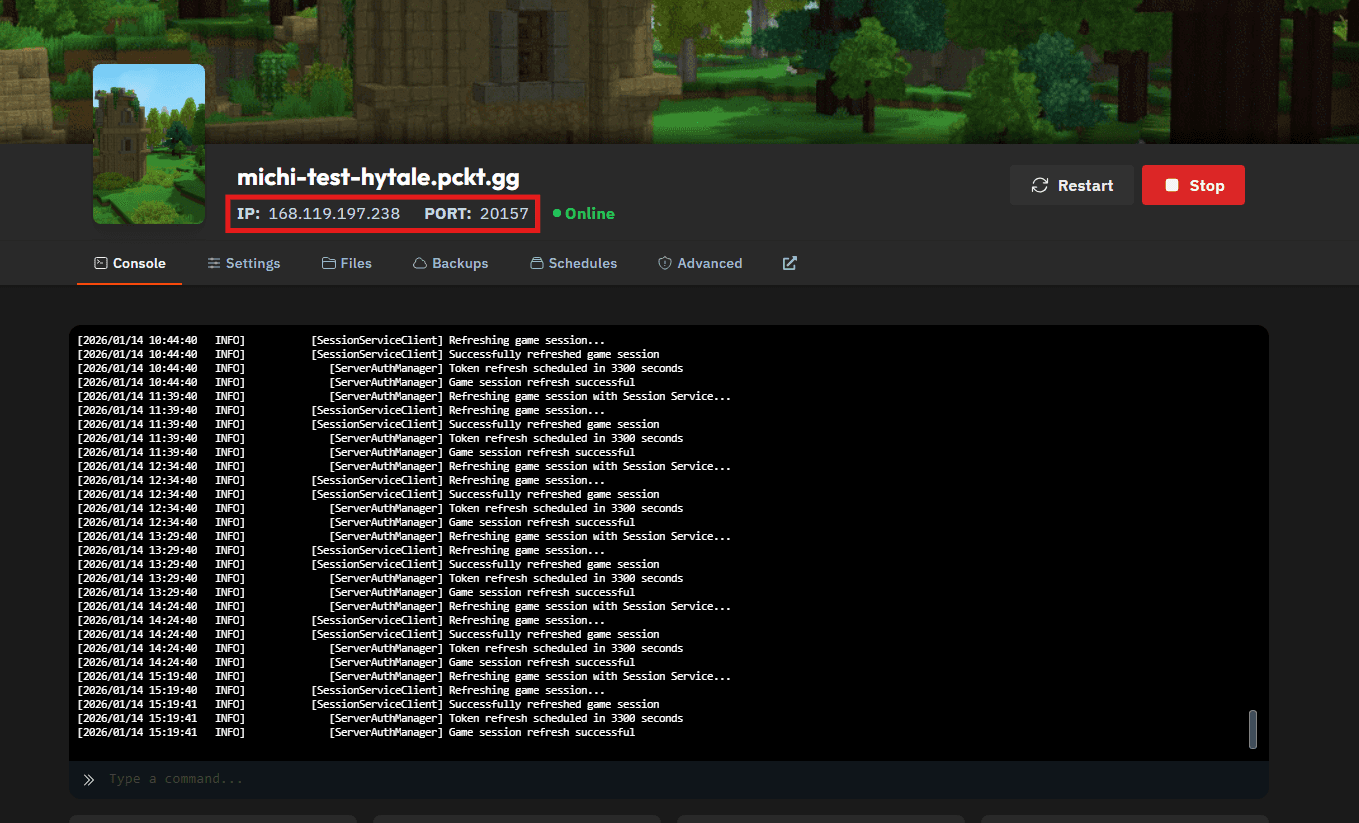
- The server address (IP and port)
- The server password, if one is set
You can find the server address and port in your server’s panel.
Method 1: Connect via Direct Connect
Step 1: Open the Servers Menu
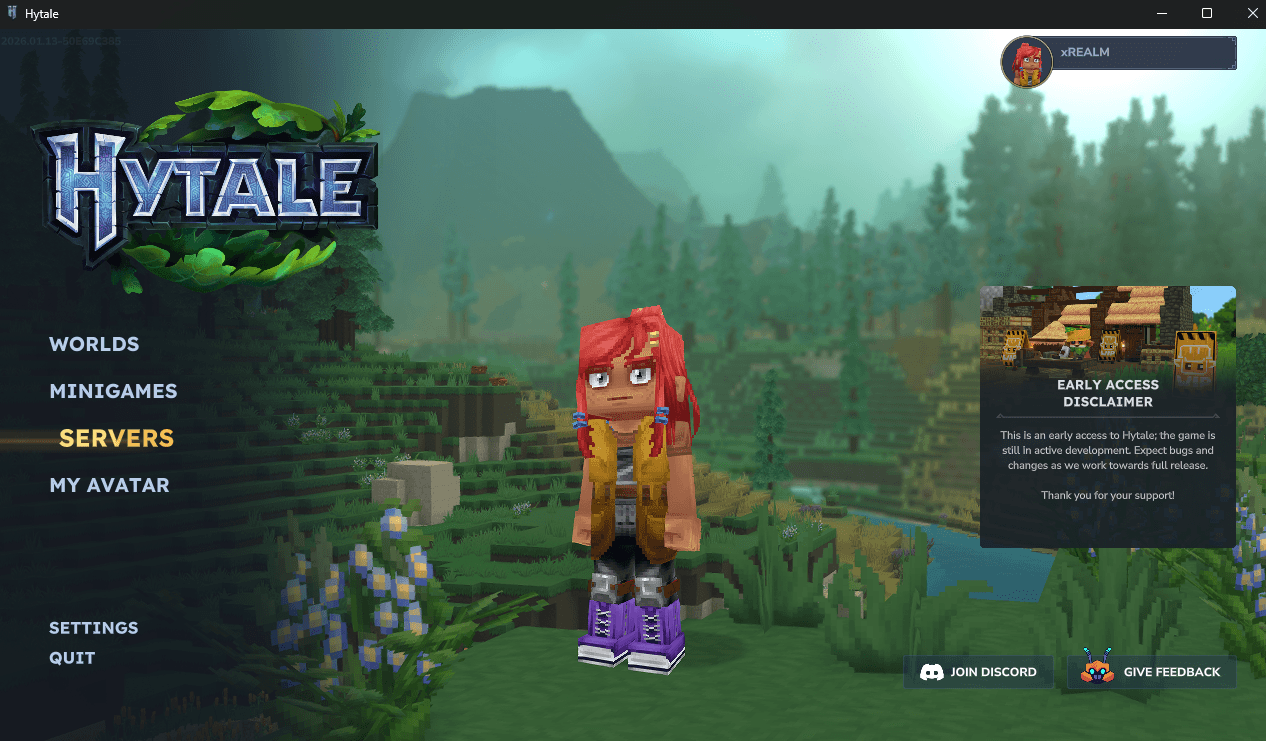
Launch Hytale and, from the main menu, select Servers.
Step 2: Open Direct Connect
Click Direct Connect in the bottom-right corner of the screen.
Step 3: Enter the Server Address
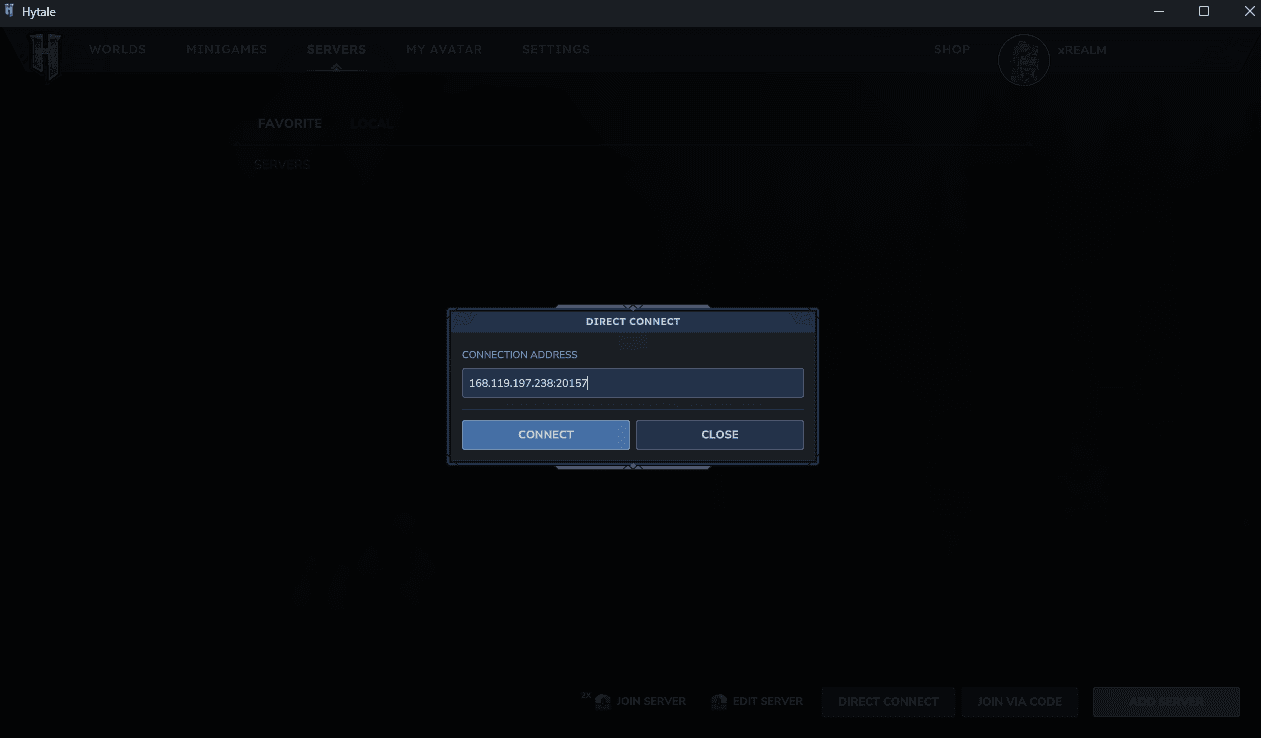
Enter your server address in the following format:
IP_ADDRESS:PORT
Then click Connect.
Step 4: Enter the Server Password (If Required)
If your server is password-protected, you’ll be prompted to enter it now.
Once entered, the game will connect you to the server.
Method 2: Add the Server to Your Favorites
Adding a server to your favorites makes it easier to reconnect later without re-entering the address.
Step 1: Open the Servers Menu
Launch Hytale and select Servers from the main menu.
Step 2: Add a New Server
Click Add Server in the bottom-right corner.
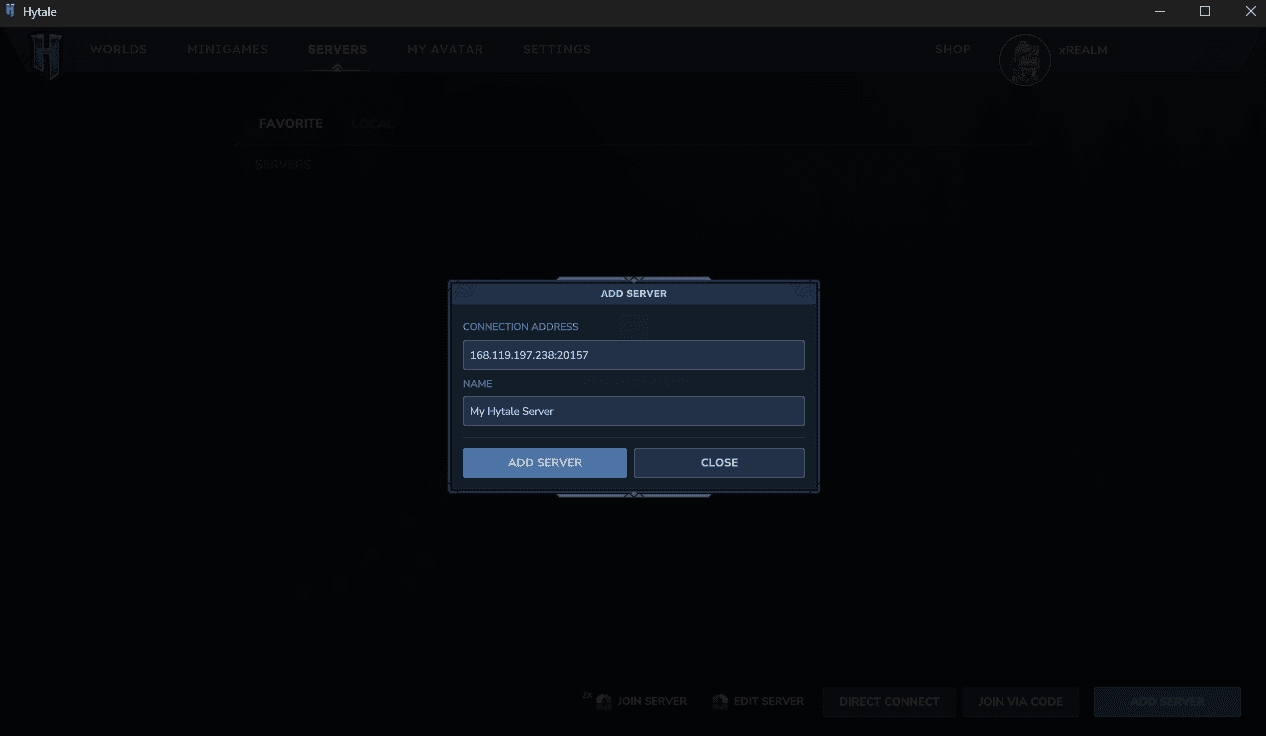
Step 3: Enter Server Details
Fill in the following fields:
- Server Address:
IP_ADDRESS:PORT - Server Name: Any name you like
Click Add Server to save it.
Step 4: Join the Server
Your server will now appear in your Favorites list.
Double-click it to connect. If a password is enabled, enter it when prompted.
Connection Tips
- • Make sure the server is fully started before connecting.
- • Double-check the port number, this is a common mistake.
- • If you can’t connect, verify that the server is authenticated and not restarting.
You can connect to your Hytale server either by using Direct Connect for quick access or by adding it to your Favorites for easy reuse. Both methods use the same server address and password, so choose whichever fits your playstyle.
Once connected, you’re ready to start exploring your world.