



Step 1: Find your local Romestead savegame
On your PC, open your Romestead save folder.
It is usually located here:
C:\Users\YourUsername\AppData\Roaming\Romestead\EA\profiles\1\saved_worlds
You can also paste this into the Windows Explorer address bar and replace YourUsername with your Windows username.
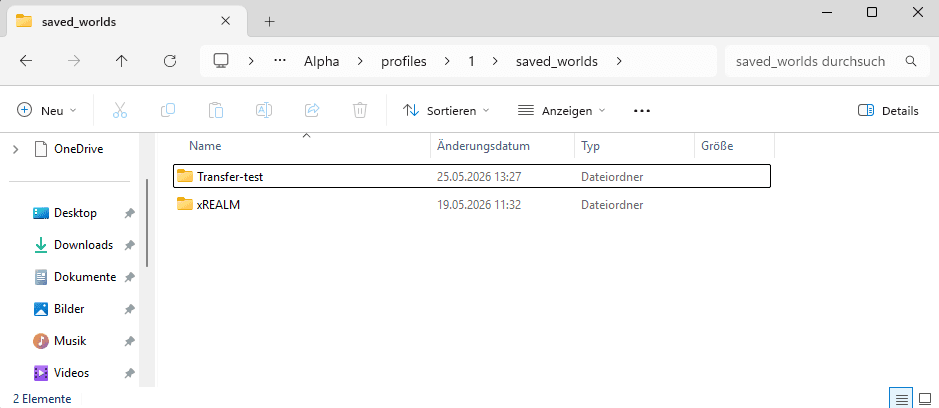
Step 2: Open the world folder you want to upload
Inside the saved_worlds folder, open the folder of the world you want to upload to your server.
Keep it open.
Step 3: Prepare your server files
Open your xREALM Server Panel.
If you have not started your server before, start it once so the server can create the required world folder. After that, stop the server again.
Then go to:
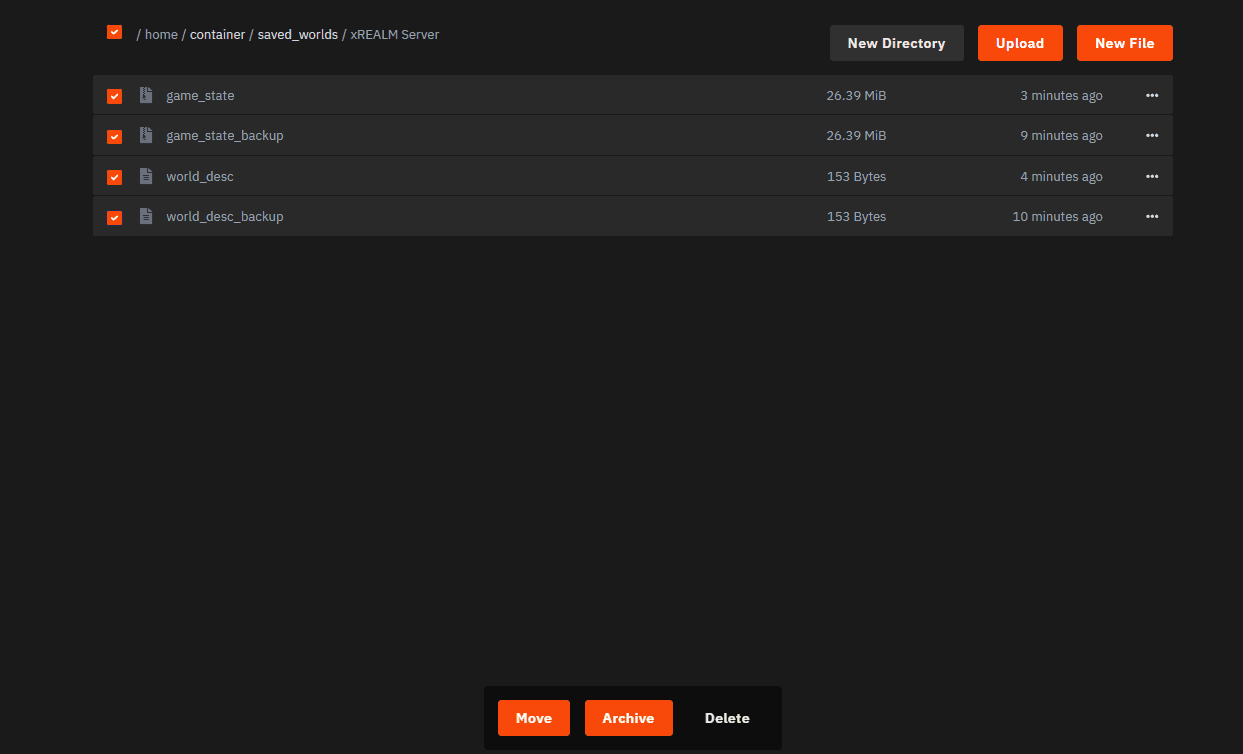
/home/container/saved_worlds/
Open the world folder on your server, then delete all files inside it.
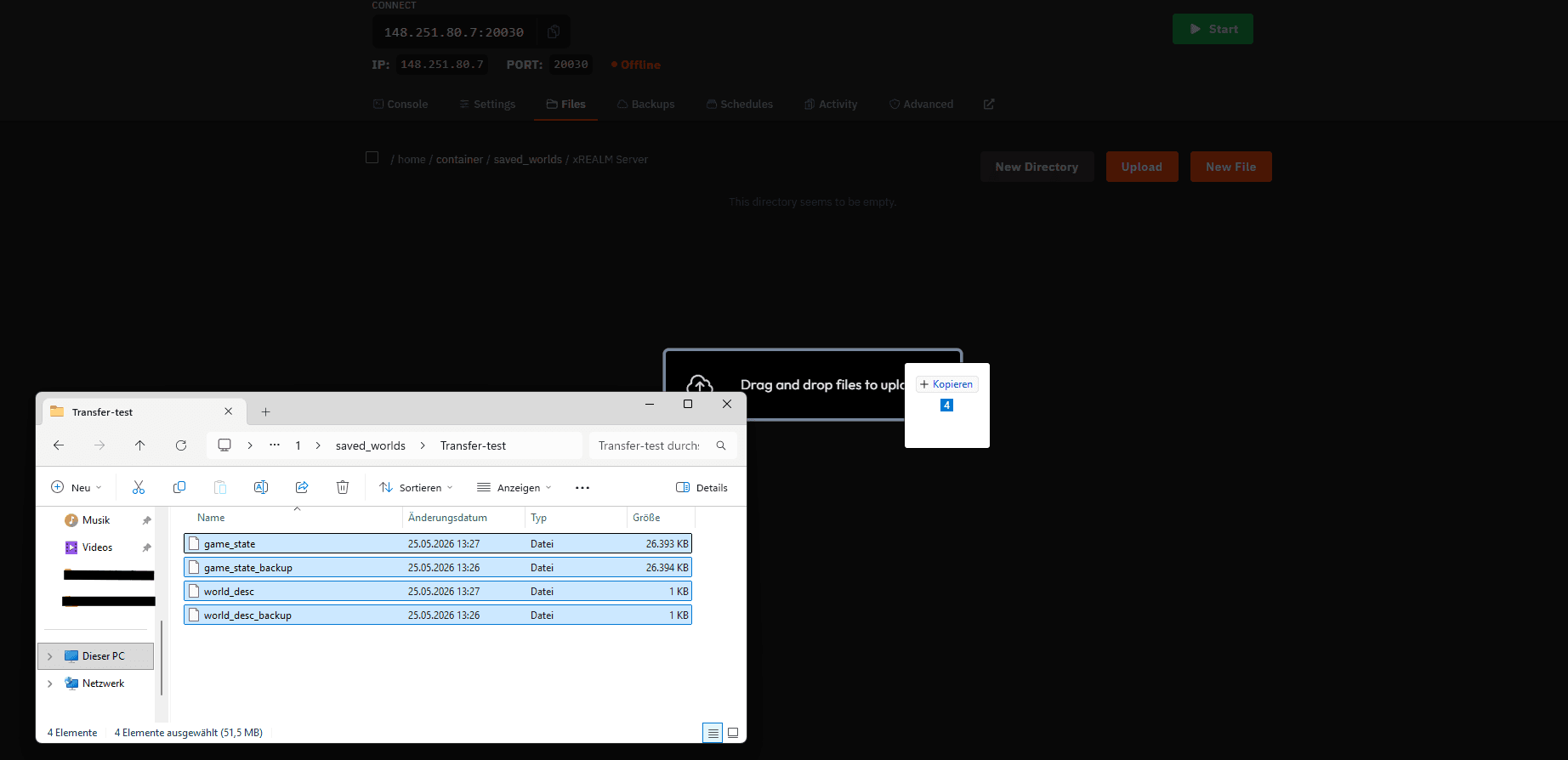
Step 4: Upload your local world files
Drag and drop all files from your local world folder into the same world folder in the Server Panel.
Step 5: Start your server
Start your server again.
Your local Romestead world should now be running on your xREALM server. Enjoy!🚀